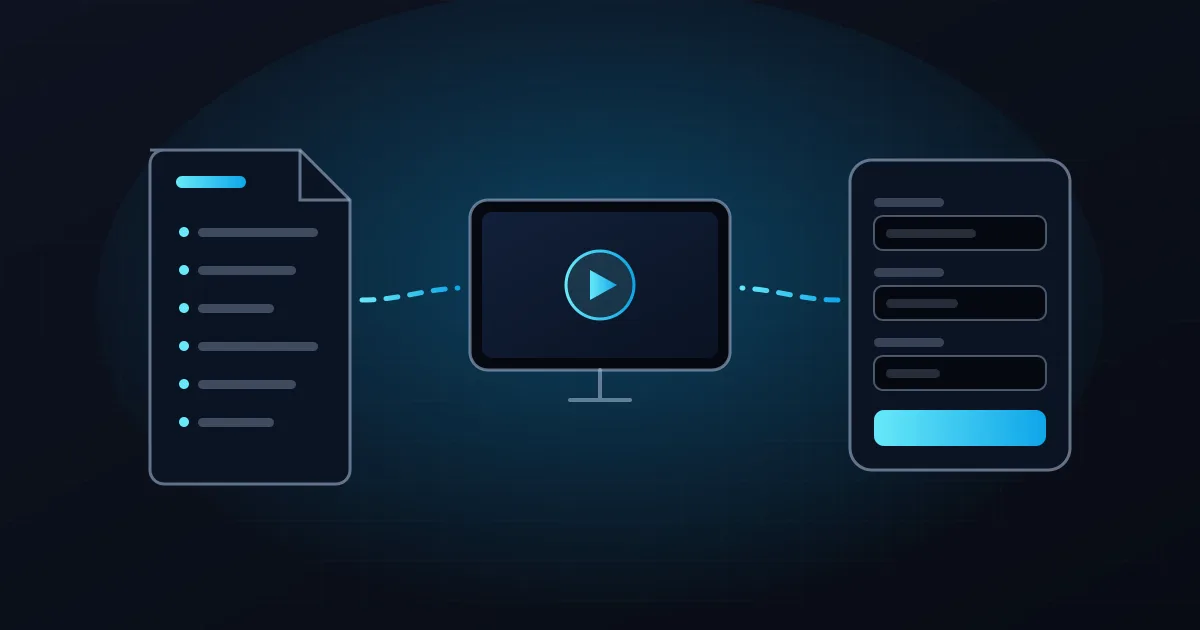
In short: an Xtream Codes login is three details (server URL, username and password). An M3U playlist is one link. Use the method your player supports. If it supports both, either works: Xtream Codes is often easier to type with a TV remote, and M3U works in more apps. Every VisitXO plan and free trial includes both.
What Xtream Codes means in an IPTV player
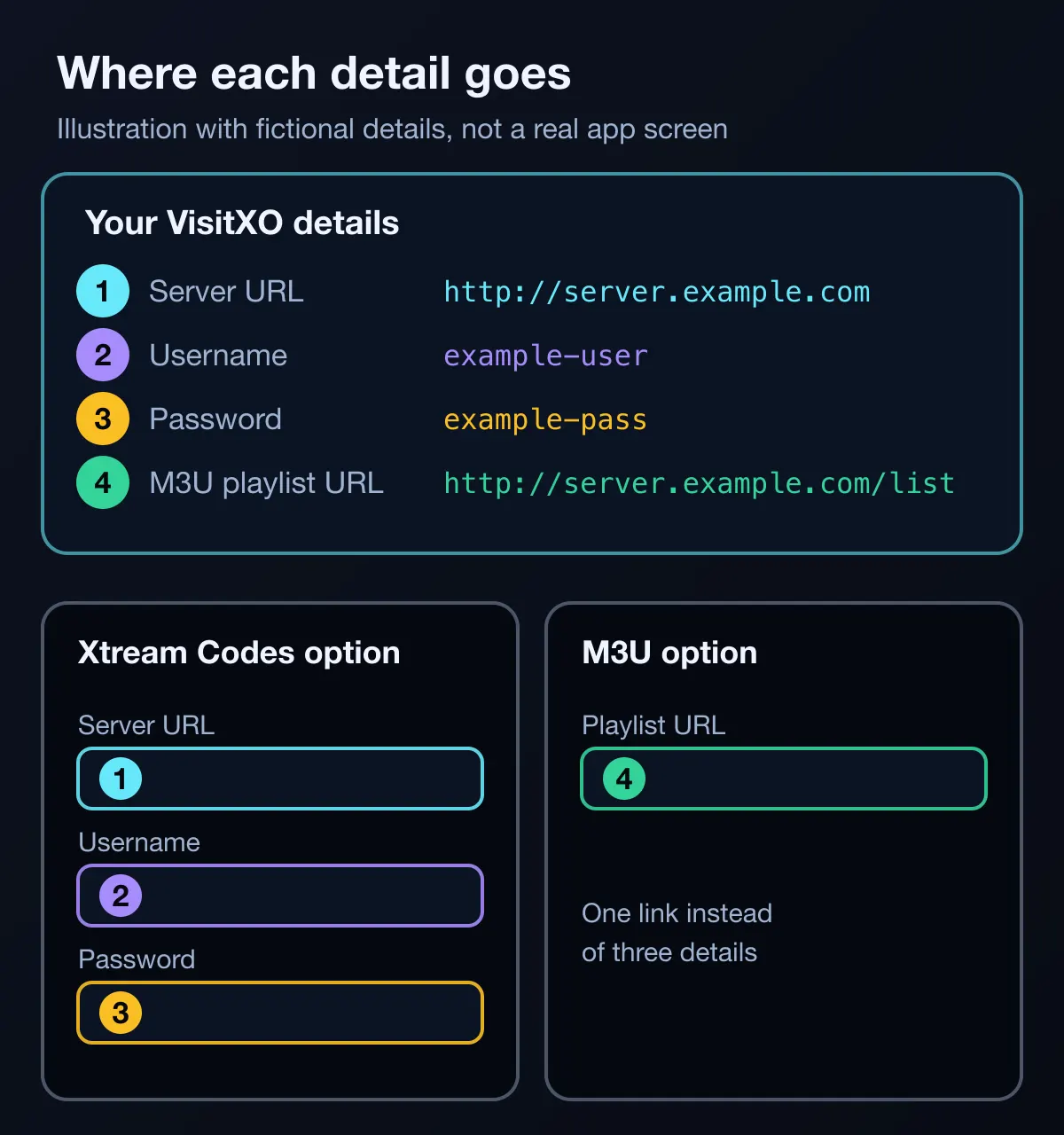
In IPTV players, Xtream Codes (also called the Xtream Codes API, or just "Xtream") is a login method. Instead of one long link, you enter three details from your provider:
- Server URL: the address of your provider's server, sometimes with a port number after a colon.
- Username and password: your own login for that server.
Xtream Codes is not a subscription
The name describes how you sign in, not where the channels come from. A player that supports Xtream Codes still has no channels until you add a subscription, and "free Xtream codes" shared online are not a safe or reliable way to get them (see common mistakes).
What an M3U playlist is
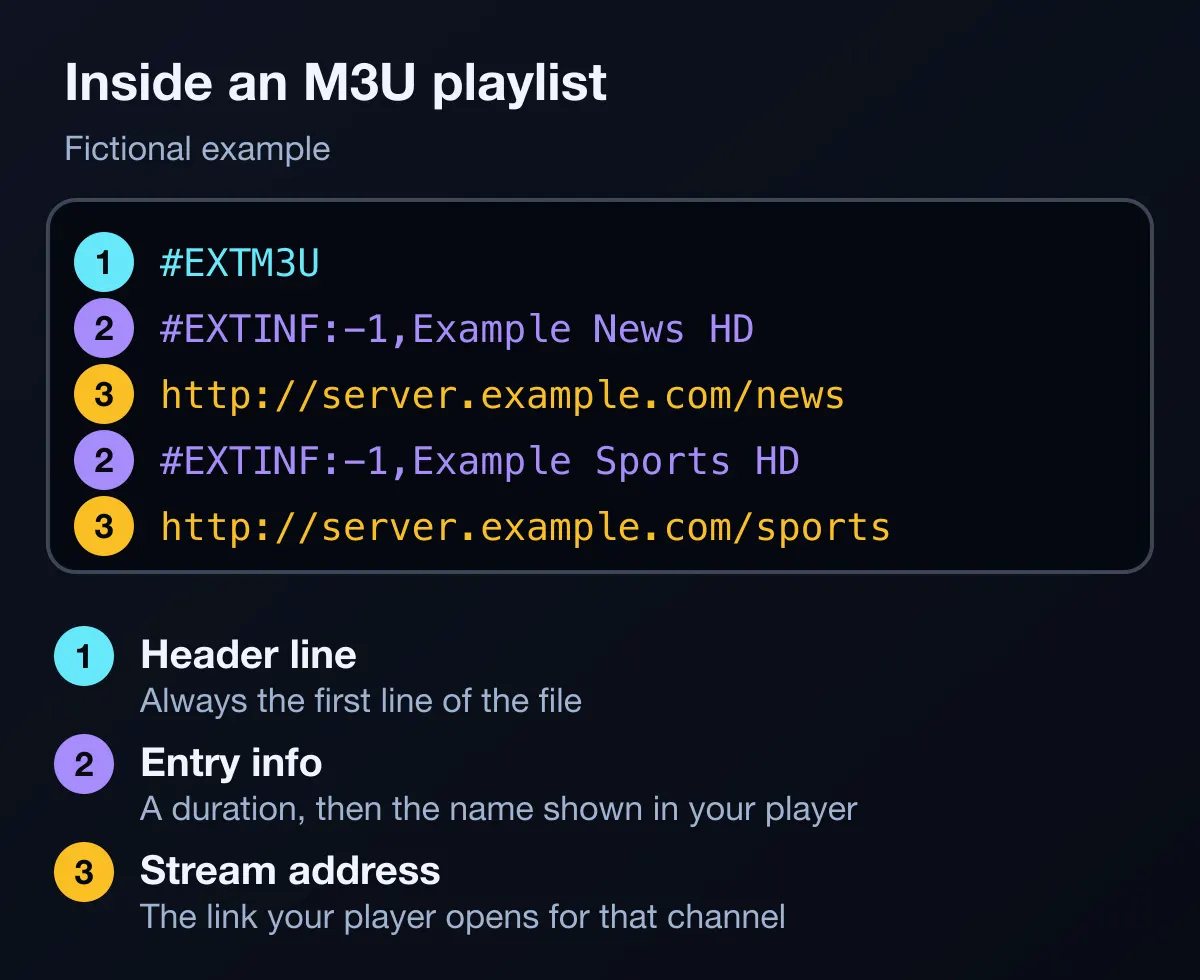
M3U is a plain-text playlist format. Each entry in the file points to a media file or a stream, by a file path or a URL. M3U has no single formal specification, but the "extended" version that IPTV uses is widely supported: it starts with an #EXTM3U line, and #EXTINF lines give each entry a duration and a display name, such as a channel name.
An M3U8 file is an M3U playlist encoded in UTF-8. HTTP Live Streaming (HLS) also uses M3U8 playlists, and its specification, RFC 8216, requires every playlist to start with #EXTM3U.
For IPTV, your provider gives you an M3U playlist URL: a link your player downloads to get the list of channels. You do not need to open or edit the file yourself.
Xtream Codes vs M3U: side-by-side comparison
Both methods connect your player to the same VisitXO subscription. The differences are in what you enter and which apps accept it.
| Xtream Codes | M3U playlist | |
|---|---|---|
| What you enter | Server URL, username and password | One playlist URL |
| Typing on a TV remote | Three short fields | One long link, easier to paste on a phone or computer |
| Apps that accept it | Many dedicated IPTV players, such as TiviMate, IPTVX, UHF and IPTV Smarters Player PRO | Many IPTV players, and general media players such as VLC. Some apps, such as Smart IPTV and Smarters Player Lite, accept M3U only |
| TV guide (EPG) | Depends on the player and the service | Depends on the player. Some players, such as IPTVX, let you add a separate EPG link |
| Content | Your VisitXO channels, movies, series and sports | The same VisitXO subscription |
| With VisitXO | Included with every plan and free trial | Included with every plan and free trial |
App support is taken from each developer's official listing or website (checked November 2026). Listing an app here does not mean VisitXO has tested it, and developers can change what their apps support.
Which one should you use?
Start from your player, not from the method:
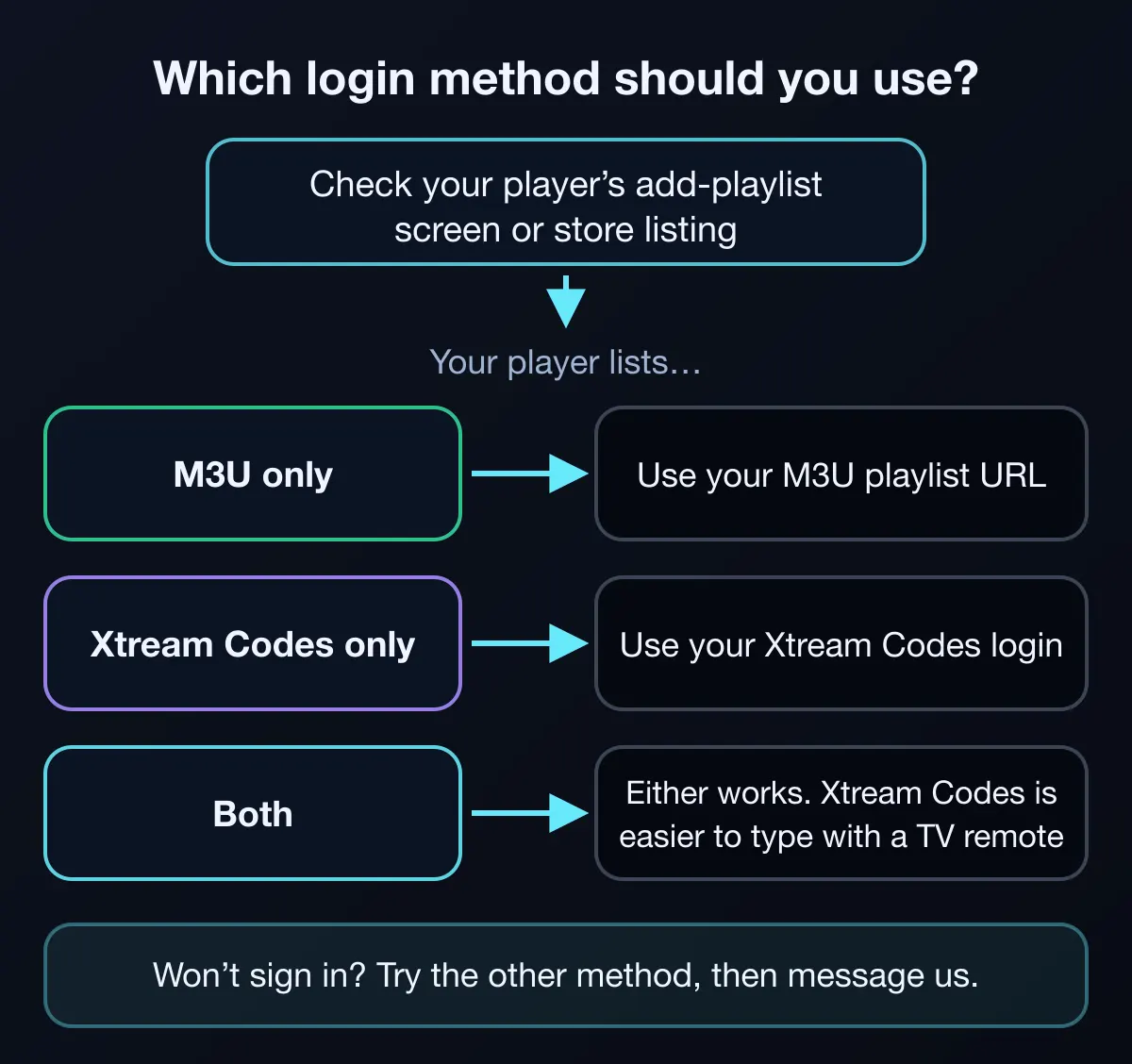
- Your player supports only one method: use that one. For example, Smart IPTV and VLC use the M3U playlist URL.
- Your player supports both: either works. Xtream Codes is often quicker to type on a TV with a remote. M3U is handy if you can paste the link from your phone or computer.
- One method will not sign in: try the other one before anything else, then message us.
- Want to compare them? The free 24-hour trial includes both methods, so you can test each one in your own player.
- Not sure what your player supports? Check its official store listing or its add-playlist screen, or ask us on WhatsApp.
How to add each one to your player
Option names vary between apps, but the steps are similar everywhere. Enter your details exactly as we sent them: copying and pasting avoids most errors.
With Xtream Codes
Open the player, choose to add a playlist, user or account, and pick the Xtream Codes option (sometimes "Xtream API" or "Xtream"). Enter the server URL, username and password, including http:// or https:// and any port number shown in your details. Give the playlist any name you like if the app asks for one.
With an M3U playlist
Choose to add a playlist, pick the M3U or "playlist URL" option, and paste your M3U playlist URL. Some apps work differently: Smart IPTV, for example, has you add the playlist on its developer's website using your TV's MAC address, and in VLC you open the Media menu, select Open Network Stream and paste the URL.
Device-by-device help
Our setup guides cover each type of device, including a step-by-step Fire TV Stick guide. If you use a Smarters app, see which Smarters app supports which method.
Common mistakes to avoid
- Mixing the two methods: pasting the full M3U link into the Xtream Codes server field, or entering only the server address where the app expects an M3U URL.
- Small typing errors: a missing character, a wrong capital letter, or a space at the end.
- Leaving out part of the server URL: such as
http://or the port number. - Using your details on two devices at once: each VisitXO subscription works on one device at a time, whichever method you use.
- Using codes or playlists shared online: they are usually shared without permission, often stop working, and come with no support. Never enter details from an unknown source.
- Sharing your own details: treat your login and playlist URL like a password.
Get both login methods with VisitXO
Every VisitXO plan and free trial includes an Xtream Codes login and an M3U playlist URL, so you can use the method your player supports. Plans are prepaid with no auto-renewal, and our team helps you set up on WhatsApp 24/7.
Prices in US dollars. Login details and setup instructions arrive by email or WhatsApp, usually within 5–15 minutes after payment. Refund Policy.
Frequently asked questions
Is Xtream Codes an IPTV subscription?
No. Xtream Codes is a way to sign in to a player with a server URL, username and password. The channels come from your IPTV subscription, such as VisitXO.
Is M3U better than Xtream Codes?
Neither is better in general: both connect your player to the same subscription. Use the one your player supports, or the one that is easier to enter on your device.
What is the difference between M3U and M3U8?
An M3U8 file is an M3U playlist encoded in UTF-8. Many IPTV players accept both. Use the playlist URL exactly as your provider sent it.
Does VisitXO give me both?
Yes. Every paid plan and every free trial includes both an Xtream Codes login and an M3U playlist URL, with setup instructions. Paid plan details arrive by email or WhatsApp; free trial details are sent on WhatsApp.
Can I switch from M3U to Xtream Codes later?
Yes. Both are included, so you can add your subscription to a player with the other method at any time. Each subscription still works on one device at a time.
Can I test both methods with the free trial?
Yes. The free 24-hour trial includes both an M3U playlist URL and an Xtream Codes login, so you can try whichever method your player supports. Request it on WhatsApp, with no payment details needed.