Quick checklist: test your speed on the device you watch on, restart the router and device, improve the Wi-Fi signal or use a cable, pause other heavy use, update the player, then try another channel. If several channels still buffer on a good connection, contact our 24/7 WhatsApp support.
Why IPTV buffers
A stream needs a steady flow of data. When that flow slows down or drops, the player pauses to catch up. The most common causes are:
- Connection speed or stability: the connection is too slow for the stream, or drops in and out.
- A busy home network: devices that stream, game, video-call or download at the same time all share one connection.
- Weak Wi-Fi: distance, walls and neighboring Wi-Fi networks can weaken the signal where you watch.
- The device: a device that has been running for a long time, or has many apps open.
- The player app: an outdated version, or a problem with the app itself.
- The stream: sometimes one channel or stream has a problem. Our support team can investigate it.
Check your internet speed the right way
A speed test shows whether your connection can keep up with the stream. To get a useful result:
- Run it on the device you watch on, or on another device connected the same way (the same Wi-Fi network, or a cable).
- Run it at the time you usually watch, when your home network is at its busiest.
- Pause other downloads and streams while you test.
What the result means
Compare your download speed with what you need. We recommend at least 15 Mbps for HD. 4K is available on selected channels and content, with a compatible device and connection.
If the result is well below the speed your internet plan should deliver, contact your internet provider. The FCC's home network tips suggest asking your provider for troubleshooting help, or whether there is an outage in your area.
Get a stronger, steadier Wi-Fi signal
If your speed is good next to the router but poor where you watch, the Wi-Fi signal is the weak link. These steps follow the FCC's home network tips.
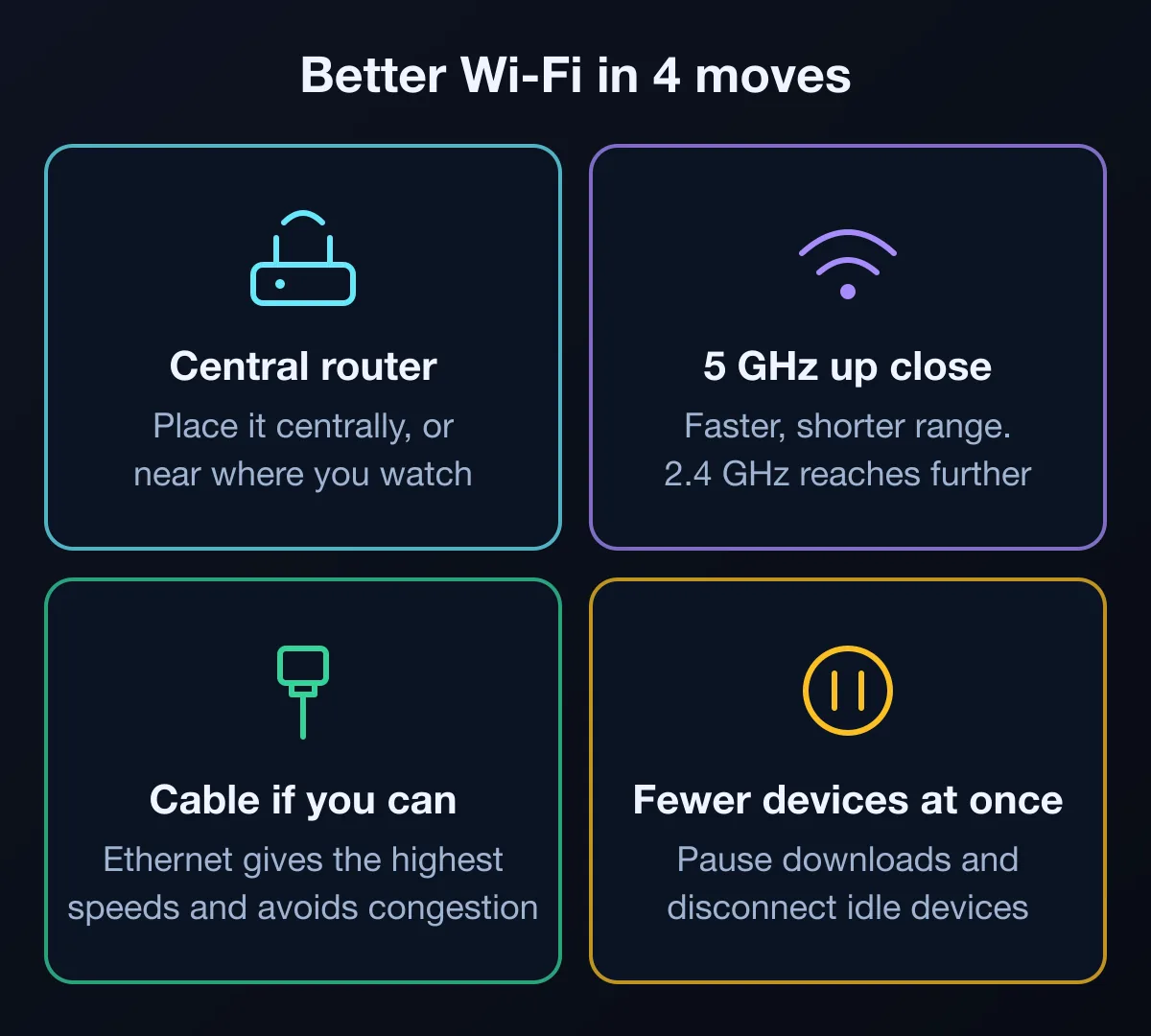
- Place the router centrally: a central spot helps Wi-Fi reach more of your home. You can also move it closer to the room where you watch.
- Pick the right band: many routers offer a 2.4 GHz and a 5 GHz network. 5 GHz is faster and often less crowded, but covers a shorter range. 2.4 GHz reaches further, but is slower. If your TV or streaming device is near the router, try the 5 GHz network.
- Use a cable if you can: an Ethernet cable between the router and your device gives the highest speeds and avoids Wi-Fi congestion. If your device has no Ethernet port, an Ethernet adapter may help.
- Extend the signal in a larger home: a Wi-Fi range extender or a mesh Wi-Fi system can improve coverage.
- Check your router: an outdated router may not keep up with a faster internet plan.
Step-by-step fixes
Try these in order, checking playback after each one.
1. Restart your router and device
Turn your router off and back on, then restart your TV, streaming stick or other device. A restart can clear temporary problems on both.
2. Reduce other traffic
Pause large downloads, cloud backups and other streams while you watch, and disconnect devices you are not using from the Wi-Fi.
3. Update the player app and your device
Install updates for the player and for the device's system software. Some players also let you clear their cache in their settings.
4. Try a different channel
If only one channel buffers, the problem is likely that channel rather than your setup. Note the channel name and the time, so our support team can check it.
5. Optional: try the other login method
VisitXO gives you both an M3U playlist URL and an Xtream Codes login. If your player supports both, you can add the service with the other method and compare. This is not a guaranteed fix: buffering usually comes from connection stability, network congestion, device performance or the stream itself. Xtream Codes vs M3U explained.
6. Try another compatible player
If one player keeps struggling on your device, another compatible player may behave differently. Ask us on WhatsApp before you install one.
Buffering in 4K
Higher-quality streams need more data. 4K is available on selected channels and content, with a compatible device and connection. If 4K content buffers but HD plays smoothly, your connection or device may not be keeping up with 4K. Try the HD version of the channel, or use a cable or the 5 GHz network.
Is it your setup or the stream?
Two quick checks tell you where the problem most likely is.
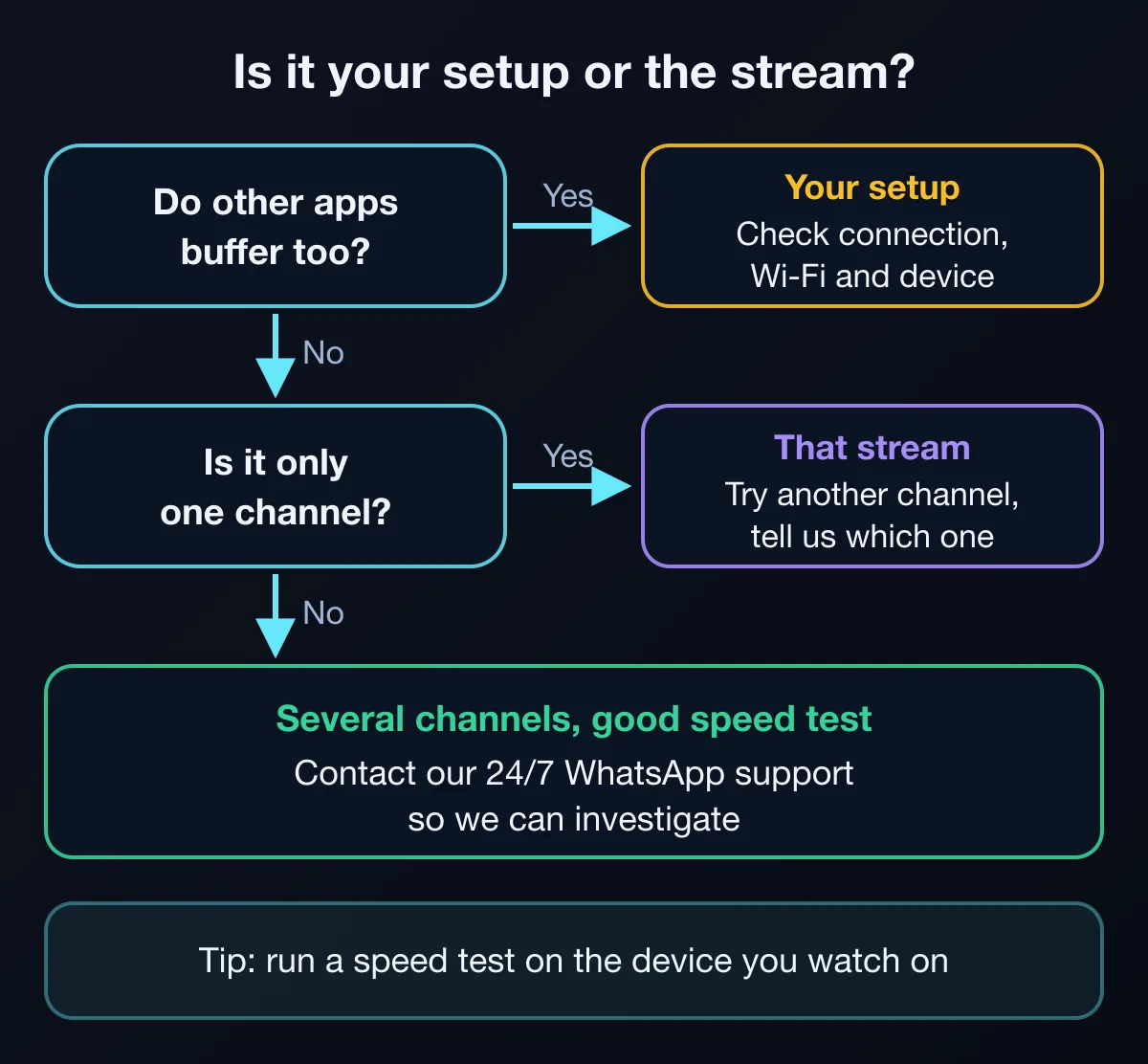
- Other apps buffer too: if another streaming app on the same device also struggles, the cause is most likely your connection, Wi-Fi or device. Work through the fixes above.
- Only one channel buffers: the cause is most likely that channel or stream. Try another channel and tell us which one.
- Several channels buffer, everything else plays smoothly: if your speed test is good too, contact our support team so we can investigate.
When to contact support
If several channels still buffer after these checks, on a connection that meets the recommended speed, contact our team on WhatsApp. Support is available 24/7, and we will investigate the issue with you. To help us find the cause faster, send:
- Your device and the player app you use.
- Whether you added VisitXO with the M3U playlist URL or the Xtream Codes login.
- Which channels buffer, and at what time.
- Your speed test result.
- Whether other streaming apps on the same device also buffer.
If the service doesn't work on a supported device and our team can't fix it within 48 hours, you can get a full refund within 7 days of purchase. See the Refund Policy for all the cases.
Device-specific help
For buffering and other problems on a specific device, see the troubleshooting section of our Fire TV Stick setup guide. For other devices, read our IPTV setup guide or ask us on WhatsApp.
Try VisitXO on your own connection
The best way to know how a service plays in your home is to test it there. VisitXO offers a free 24-hour trial on WhatsApp with both M3U and Xtream Codes details, HD and Full HD streaming with 4K on selected channels and content, prepaid plans with no auto-renewal, and 24/7 support on WhatsApp.
Prices in US dollars. Login details and setup instructions arrive by email or WhatsApp, usually within 5–15 minutes after payment. Refund Policy.
Frequently asked questions
Why does IPTV buffer more in the evening?
Evenings are when more people at home tend to stream, game and video-call at the same time, so a home network is often busier. Pausing other downloads and using a cable or the 5 GHz network can help.
What internet speed do I need for IPTV?
We recommend at least 15 Mbps for HD. 4K is available on selected channels and content, with a compatible device and connection.
Will switching between M3U and Xtream Codes fix buffering?
Not usually. VisitXO gives you both methods, so if your player supports both you can try the other one as an optional step. Buffering is more often caused by connection stability, network congestion, device performance or the stream itself.
Will a VPN fix buffering?
A VPN is not required to use VisitXO, and it does not fix home-network problems. Start with the checks above.
Is buffering caused by my device or the service?
If other streaming apps also struggle, the cause is most likely your connection or device. If several channels buffer on a good connection while other apps play smoothly, contact our support team on WhatsApp so we can investigate.
Can I test VisitXO on my connection before paying?
Yes. Request a free 24-hour trial on WhatsApp and see how it plays on your own device and connection. The trial includes both an M3U playlist URL and an Xtream Codes login.